Connecting Silicon Labs EFR32xG22 to the Cloud

Image Source: metamorworks/Shutterstock.com
By Greg Toth for Mouser Electronics
Published June 22, 2020
The Silicon Labs EFR32xG22 Wireless Gecko Starter Kit supports the development of applications using Bluetooth®, Zigbee, and proprietary wireless protocols. The Medium One IoT Platform is a cloud-based Internet of Things platform designed to help early-stage developers prototype IoT projects or connect existing hardware to the cloud. In this project, we’ll set up an IoT development environment using the EFR32xG22 and a Wi-Fi connectivity module to read a temperature sensor, communicate its value over Bluetooth®, and send the data to the Medium One cloud where it can be processed and viewed using programmable workflows and configurable widget dashboards.
Project Materials and Resources
The project BOM lists components used in this project. Additional hardware and software development tools are also identified.
Project Bill of Materials (BOM)
- 634-SLWSTK6021A - Silicon Labs EFR32xG22 Wireless Gecko Starter Kit
- 485-3405 - Adafruit HUZZAH32 ESP32 Feather Board
Hardware
- Personal computer (PC) running Microsoft Windows®, MacOS or Linux
- USB Type A to Mini-B cable (included in SLWSTK6021A)
Accounts and Software
- Web browser for accessing software download sites and Medium One IoT Platform
- Login account for the Medium One IoT Platform
- Login account for Silicon Labs to allow downloading software
- Silicon Labs Simplicity Studio 4 Integrated Development Environment (IDE)
- Arduino IDE for configuring the HUZZAH32 board
- Serial terminal program such as Tera Term on the PC
- Wi-Fi access point connection details including SSID and password
Project Technology Overview
Silicon Labs EFR32xG22 Wireless Gecko Starter Kit (SLWSTK6021A)
The Silicon Labs EFR32xG22 Wireless Gecko Starter Kit (Figure 1) supports the development of IoT applications using Bluetooth, Zigbee, and proprietary wireless protocols using the EFR32xG22 family of low-power System on Chip (SoC). The EFR32xG22 features an Arm® Cortex®-M33 microcontroller along with flash and RAM DMA, counters/timers, SPI and I2C, UART, GPIO, and ADC peripherals. Included in the starter kit is a mainboard with integrated J-Link debugger, LCD display, power measurement circuitry, debug and I/O headers, push buttons and LEDs, battery holder, and a socket for inserting a daughterboard containing the EFR32xG22 SoC chip. The kit includes two EFR32xG22 daughterboards (Figure 2) having QFN32 and QFN40 SoC chip sizes and onboard antennas. The daughterboard plugs into the mainboard to provide a complete development environment. Power is provided through USB, which also supports programming and debugging as well as serial UART connectivity to a host computer.
More detailed information about the kit can be found here and here.
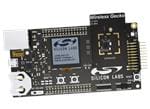
Figure 1: Silicon Labs EFR32xG22 Wireless Gecko Starter Kit supports the development of IoT applications using Bluetooth, Zigbee, and proprietary wireless protocols using the EFR32xG22 family of low-power System on Chip (SoC). (Source: Mouser Electronics)

Figure 2: Two EFR32xG22 Radio Boards can be programmed using Simplicity Studio 4, an Eclipse-based IDE that runs on Windows, Mac, and Linux computers. (Source: Mouser Electronics)
Silicon Labs Simplicity Studio 4
Firmware programs that run on microcontrollers are typically developed and tested using an Integrated Development Environment (IDE) running on a personal computer. The IDE provides an editor, compiler, linker, debugger, and a mechanism for transferring binary program images to the microcontroller.
The EFR32xG22 can be programmed using Silicon Labs Simplicity Studio 4, an Eclipse-based IDE that runs on Windows, Mac, and Linux computers. It connects to the EFR32xG22 main board using a USB cable that supports programming and debugging. Simplicity Studio can be downloaded for free from the Simplicity Studio site.
Adafruit HUZZAH32
The EFR32xG22 does not have built-in Wi-Fi Internet connectivity. For this project, we'll use an Adafruit HUZZAH32 board as a receiver providing Bluetooth and Wi-Fi connectivity along with secure MQTT communications. The HUZZAH32 will be programmed with an application that receives sensor data from the EFR32xG22 over Bluetooth and sends the data to Medium One over a Wi-Fi Internet connection.
Project Application Source Code Files
For this project, Simplicity Studio will be used to create project source code files from one of the example projects included in the board's Software Development Kit (SDK). The example projects are working applications that you can run as-is or modify with your own customizations.
Software for the HUZZAH32 board is available in a GitHub repository that you will download and program onto the HUZZAH32 using the Arduino IDE.
Medium One IoT Platform
The Medium One IoT Platform (Figure 3) is designed to help early-stage developers prototype their IoT project or connect their existing hardware to the cloud. It offers an IoT Data Intelligence platform enabling customers to quickly build IoT applications with less effort. Programmable workflows allow you to quickly build processing logic without having to create your own complex software stack. Configurable dashboards allow you to visualize application data and view real-time data in various formats. Medium One’s iOS and Android apps allow you to build simple mobile app dashboards that can communicate with your devices through the IoT platform.
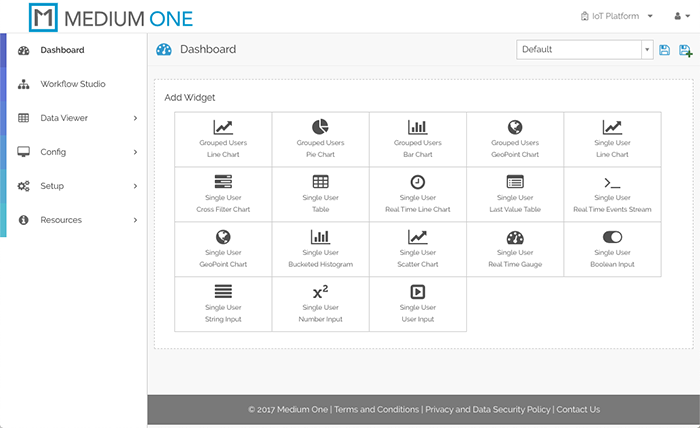
Figure 3: Medium One IoT Platform (Source: Mouser Electronics)
IoT devices can exchange data with Medium One through either a REST API or MQTT. More detailed information about the Medium One IoT Platform can be found here and on the Medium One site.
The Setup (Hardware)
While setting up the hardware be sure to remember that electronic components are static-sensitive so handle accordingly.
Personal Computer (PC)
Power up the personal computer and allow it to boot up.
Wi-Fi Access Point
Make sure your Wi-Fi access point is running with an active connection to the internet and a DHCP server that assigns IP addresses. You’ll need to know the access point SSID and security credentials to be used later when configuring the Wi-Fi connection.
EFR32xG22 Wireless Gecko Starter Kit
Follow the getting started instructions to set up the EFR32xG22 wireless starter kit using the BRD4182A 5mm x 5mm QFN40 Radio Board. The main steps will include:
- Connecting the BRD4182A radio board to the BRD4001A main board; be sure to use BRD4182A and not BRD4183A for this project
- Connecting the main board to your computer using the USB cable
- Downloading and installing Simplicity Studio on your PC
- Registering your board in Simplicity Studio
- Installing SDKs applicable to your board including 32-bit MCU SDK, Micrium OS, Bluetooth SDKs (multiple) and Flex SDK; we will be using the Bluetooth SDK for this project
Adafruit HUZZAH32
Unbox the HUZZAH32 and follow the setup instructions found here. Soldering the pin headers is optional and they aren't needed for this project. Software setup will be covered in the next section.
The Setup (Software)
Simplicity Studio
Silicon Labs’ getting started instructions explained how to download and install Simplicity Studio on your PC. After going through those steps and registering your boards with the integrated development environment (IDE), your Simplicity Studio IDE Launcher view should look similar to Figure 4.
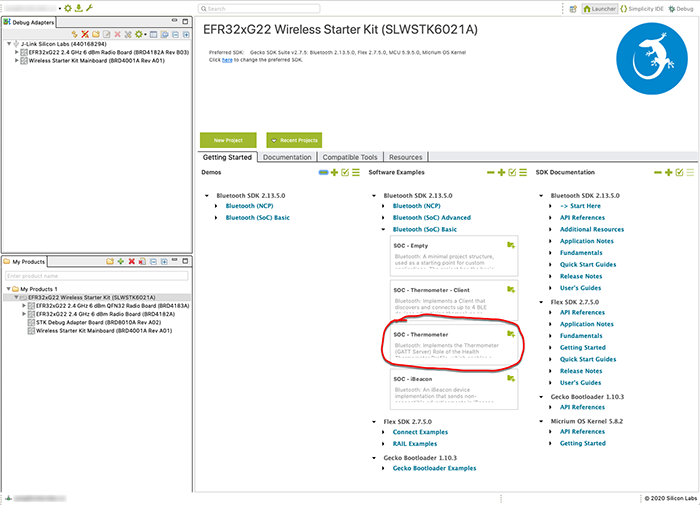
Figure 4: The view of Simplicity Studio with boards connected and SDKs installed (Source: Mouser Electronics)
Create Bluetooth Thermometer Application
Underneath the Software Examples column, expand Software Examples à Bluetooth (SoC) Basic and find the SOC - Thermometer box. Click on SOC - Thermometer and then answer Yes to create the example project. After the project is created the IDE should switch to the Simplicity IDE view and the Project Explorer pane should look like Figure 5 with a soc-thermometer project showing.
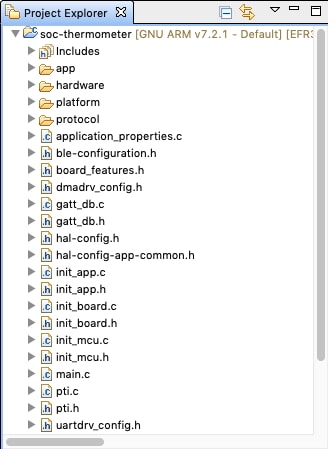
Figure 5: After creating soc-thermometer Project the IDE should switch to the Simplicity IDE view and the Project Explorer pane. (Source: Mouser Electronics)
Click on the soc-thermometer project to select it, then click the toolbar Build button (hammer icon) and wait for the build to complete. Click the toolbar Debug button (bug icon). If a Device Selection dialog box appears, select the J-Link Silicon Labs device. Under certain conditions, you might also have to click on Query lock status for the debugger to query the board. The program binary will be uploaded to the board and the debugger will be stopped at the beginning of main(). Click the Resume button (yellow bar with green triangle) to start the program executing. At this point, your board is running and advertising a temperature service via Bluetooth. You can optionally use the Silicon Labs EFR Connect or other Bluetooth scanning smartphone app to confirm the board is advertising. Be sure you disconnect or terminate the smartphone app before proceeding to the next steps.
Set Up the Medium One IoT Cloud
Web browse to the Medium One IoT Platform and log in, after which you should see an initial dashboard resembling Figure 3. If you have trouble logging in, check your Medium One credentials to make sure you're using the latest URL provided with your sandbox subscription. Click Setup → Manage Users → Add New User. Set Username to mydevice, create a password of your choosing and enter it in both password fields, then click Save. In the Manage API Users list, you should see a new user account having Login ID = mydevice and an auto-generated user MQTT ID like Figure 6.
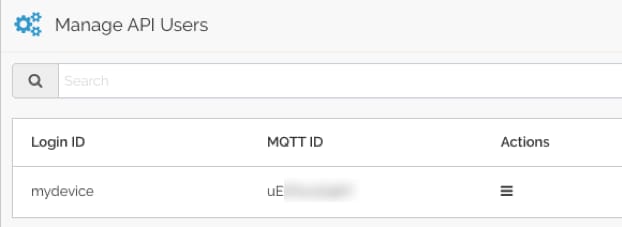
Figure 6: In the Manage API Users list, you should see a new user account having Login ID = mydevice and an auto-generated user MQTT ID. (Source: Mouser Electronics)
Click Setup → MQTT and you should see a Project MQTT ID and a set of port numbers like Figure 7.
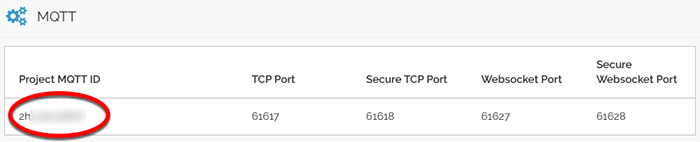
Figure 7: Clicking Setup and MQTT will provide a view of Project MQTT ID and a set of port numbers. (Source: Mouser Electronics)
Medium One uses MQTT usernames and passwords for authentication. The MQTT username is created by combining the Project MQTT ID, a forward slash, and the user MQTT ID. For example, if the Project MQTT ID is “ZHxxxxxxx0Y” and the user MQTT ID is “sTxxxxxxx8w”, the corresponding MQTT username would be “ZHxxxxxxx0Y/sTxxxxxxx8w”.
Next, we’ll create the MQTT password. Navigate to Setup → Manage API Keys → Add New API Key. Set the description to mydevice, make sure Enabled is check-marked, and click Save. The result should look like Figure 8.
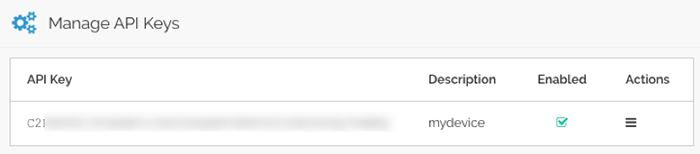
Figure 8: View of the newly created API Key after configuring the description to mydevice. (Source: Mouser Electronics)
The MQTT password is created by combining the API Key, a forward slash, and the mydevice user password. For example, if the API Key is “PZxxxxxxxxxxxxxxxxxxxxxxxxxxxxxxxxxxxxxxxxxxxMBQ” and the mydevice user password is “AaaaBbbb3” the corresponding MQTT password would be “PZxxxxxxxxxxxxxxxxxxxxxxxxxxxxxxxxxxxxxxxxxxxMBQ/AaaaBbbb3”.
The MQTT topic has the following format: “0/Project MQTT ID/User MQTT ID/Device ID”.
The Device ID field can be anything and we’ll use "mydevice" as the Device ID. For example, if the Project MQTT ID is “ZHxxxxxxx0Y” and the user MQTT ID is “sTxxxxxxx8w” the corresponding MQTT topic would be “0/ZHxxxxxxx0Y/sTxxxxxxx8w/mydevice".
The MQTT username, MQTT password, and MQTT topic strings will get added to the project source code in the next step.
Set Up the BLE-to-Medium One Bridge Running on HUZZAH32
Web browse to GitHub repository https://github.com/IoTDevLabs/esp32_mediumone_bridge_ble and follow the instructions for downloading the repository, installing the Arduino IDE and supporting libraries, and opening the application program in the Arduino IDE. Be sure the Partition Scheme is set to No OTA (Large APP) and make sure you updated the PubSubClient.h file as described in the instructions.
Set Wi-Fi Connection Parameters
In the Arduino IDE find these constants and set them to your own Wi-Fi SSID and password:
- WIFI_SSID
- WIFI_PASSWORD
Set Medium One Connection Parameters
In the Arduino IDE find these constants and set them to your own Medium One MQTT parameter strings as described earlier:
- MQTT_USERNAME
- MQTT_PASSWORD
- MQTT_PUB_TOPIC
Save the updated program and upload it to the HUZZAH32 board. Open the Serial Monitor tool so you can see the status and debugging messages generated by the HUZZAH32 board. Serial parameters are 115200,8,N,1.
Run the Application
At this point, both the EFR32xG22 and HUZZAH32 boards should be running. The EFR32xG22 is periodically transmitting a temperature value measured by the temperature sensor on the main board. The HUZZAH32 application performs these steps:
- Connect to Wi-Fi
- Connect to Medium One
- Connect to the EFR32xG22 Thermometer service and tell it to start sending temperature readings
- Periodically receive temperature readings over Bluetooth
- Periodically transmit temperature data messages to Medium One over MQTT
MQTT Payload Format
MQTT messages are formatted as JSON strings according to the Medium One MQTT payload specification. Here’s an example message:
{"event_data":{"iteration":546,"timestamp":4650868,"temp":72.35}}
Fields:
- iteration = counter that increments by 1 for each event_data message
- timestamp = milliseconds since board started
- temp = temperature in degrees F
Try heating or cooling the Si7021 temperature sensor on the mainboard to see the data values change.
View Data in the Medium One Dashboard
In the Medium One dashboard navigate to Data Viewer à Data Streams and click raw Events. You should see raw messages (Figure 9) being received. Click the “+” sign to view message details.
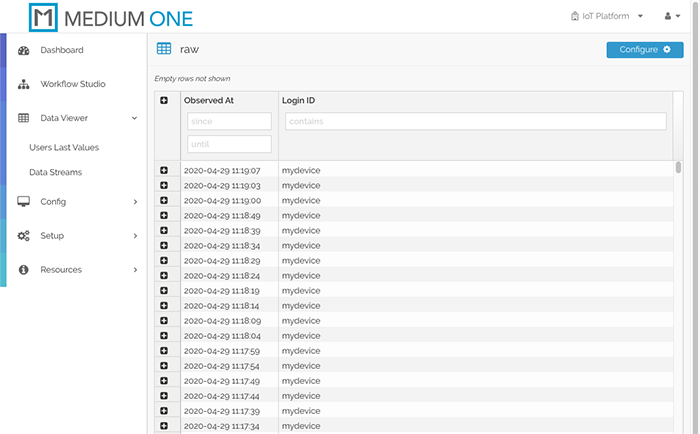
Figure 9: In the Medium One dashboard navigate to Data Viewer → Data Streams and click raw Events, which will render this display. (Source: Mouser Electronics)
Click Dashboard on the top left, then click Add Widget → Single User Real Time Events Stream to add an event stream widget to the dashboard.
In the Select user dropdown, select mydevice. You should now see messages appearing in the Real Time Events Stream widget (Figure 10). Click the dashboard save icon in the upper right corner to save your modified dashboard.
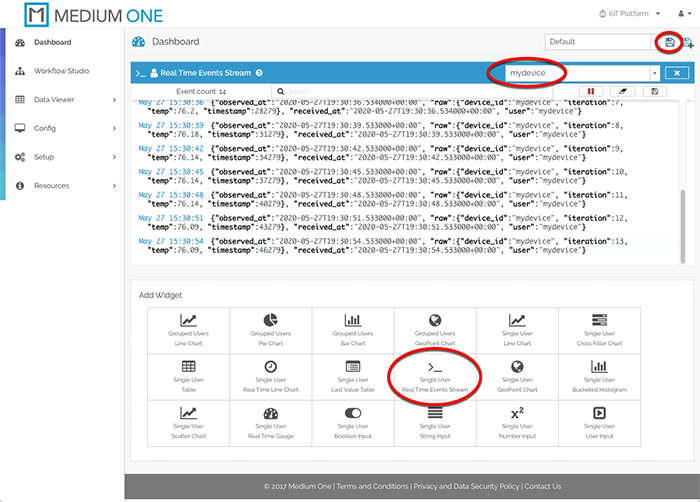
Figure 10: Messages can be seen in the Real Time Events Stream widget. (Source: Mouser Electronics)
Add More Widgets
To display more widgets, we need to enable specific data fields contained in the message payload. Navigate to Config à Data Streams and click on raw Events. The Schema Map should be pre-populated with fields detected in the incoming messages; however, they are currently disabled. Check-mark the Active box on raw.iteration, raw.temp, and raw.timestamp, then click Save Data Stream. These fields are now available for use in other dashboard widgets.
Back on the dashboard, click the Single User Last Value Table widget and select the mydevice user within the widget. Click the widget’s Tag Config icon to the right of the mydevice user selection and check-mark raw:iteration, raw:temp, and raw:timestamp, then click Save. The Last Value Table should now populate with the most recent received values for each field (Figure 11). Click the dashboard save icon toward the upper right corner to save the updated dashboard.
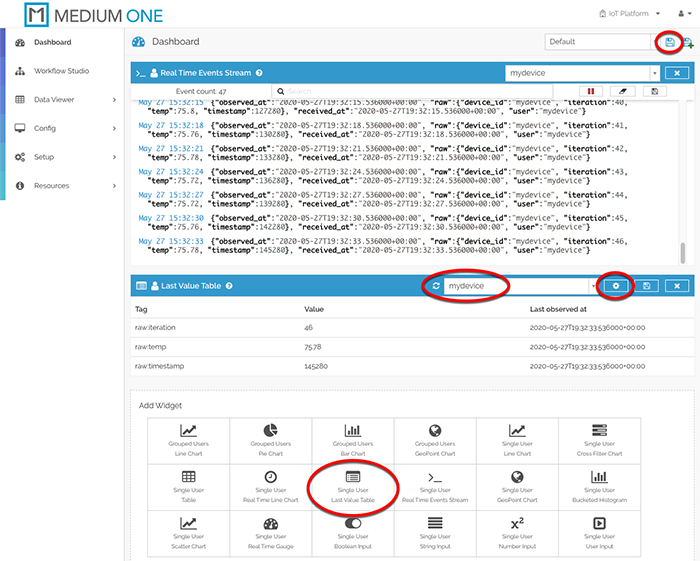
Figure 11: Messages can be seen in the Real Time Events Stream widget. (Source: Mouser Electronics)
Now let’s add dashboard widgets for the temperature and iteration counter. Click Single User Real Time Gauge and select the mydevice user. Click the widget’s Tag Config icon and check-mark raw:iteration and raw:temp, then click Save. The updated dashboard should look like Figure 12. Click the dashboard save icon to save the updated dashboard. Try heating or cooling the temperature sensor to see the gauge values change.
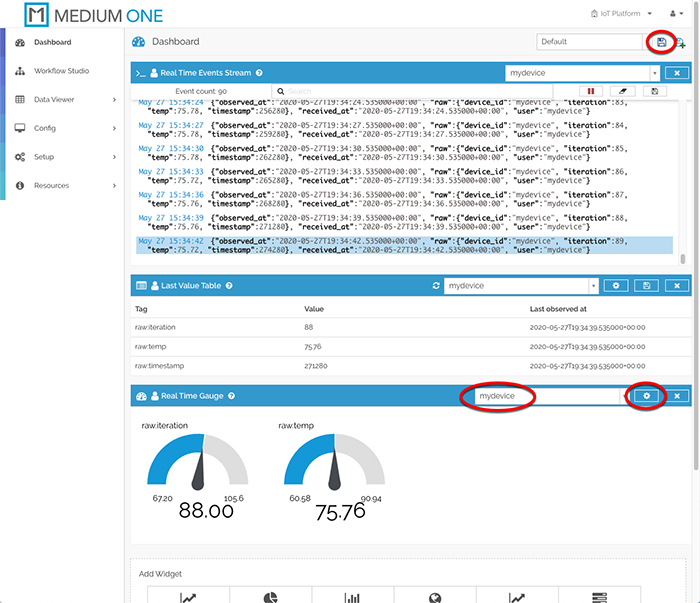
Figure 12: Real Time Gauge Widgets have been added to the dashboard (Source: Mouser Electronics)
At this point, your boards are running continuously, periodically reading the sensor and transmitting data measurements to the Medium One cloud through the internet. Remember to power off the boards when you’re done; otherwise, they will continue to send messages to Medium One and consume daily message allotments.
Troubleshooting Tips
- Make sure Simplicity Studio and SDKs are installed and configured according to the instructions.
- Make sure HUZZAH32 is set up and programmed according to the instructions.
- Use a Bluetooth scanning app on your smartphone to confirm the EFR32xG22 Thermometer service is advertising.
- View information messages on the HUZZAH32 USB serial port.
Conclusion and Where to Go Next
This project created an end-to-end sensor-to-cloud application that sends real-time sensor data to the Medium One IoT Platform through the internet. It can be modified and extended in a number of ways. Here are a few examples:
- Dive deeper into the application code and board hardware by reading the user guides and studying the source code.
- Explore other Silicon Labs SDK software examples.
- Add more widgets to the Medium One dashboard such as a real-time line chart of temperature readings.
- Learn about the Medium One Workflow Studio, which lets you create data processing workflows to transform your sensor data.
- Experiment with the Medium One mobile apps.
- Read other sensors on the main board and include the data in messages sent to Medium One.